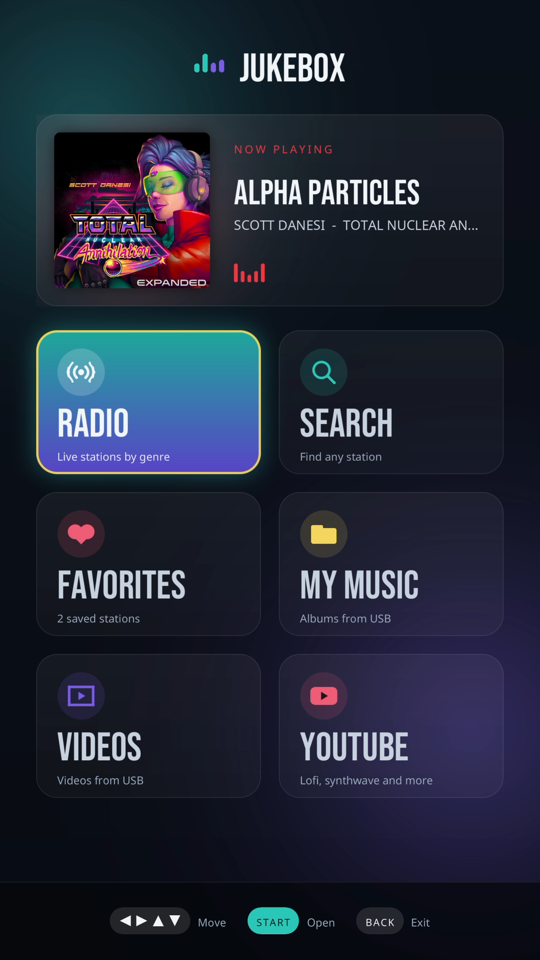
A music and internet-radio player for your pinball cabinet. Tune into thousands of radio stations, play your own music, videos and YouTube, and watch the album art (or the video) light up the backglass while a jukebox marquee glows on the DMD.

Everything is built for the playfield screen and the cabinet's buttons, with a button legend along the bottom of every screen.


An External Application for the cabinet: copy it to a USB stick and it shows up in the cabinet's own menu. No firmware changes, no root.
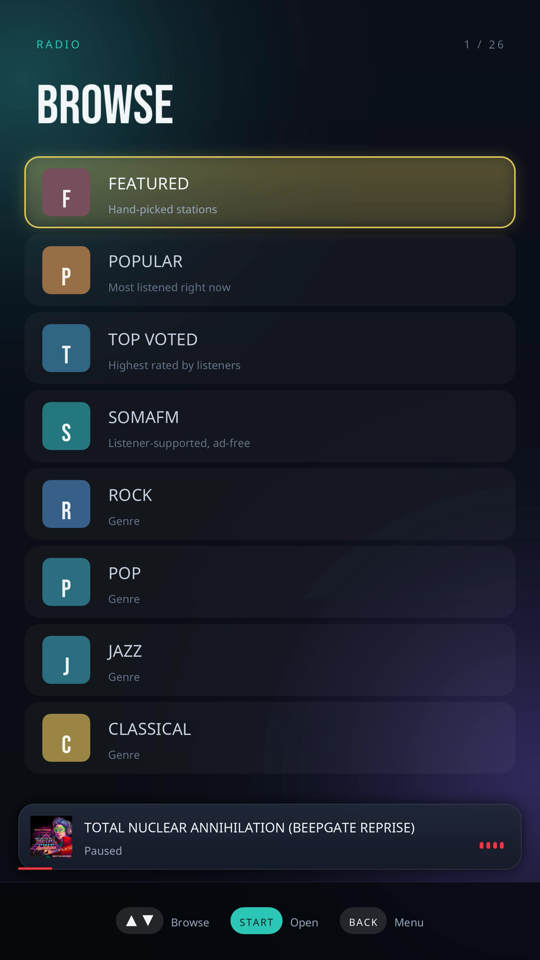
Curated categories – Featured, Popular, Top Voted, SomaFM, and genres like Rock, Jazz, Lo-fi and Ambient – streamed live.
Find any station by name with the on-screen keyboard.
Save stations with a flipper. They're kept between sessions and carry over between versions.
A music folder on the USB drive becomes a library by album and artist, with shuffle and auto-advance.
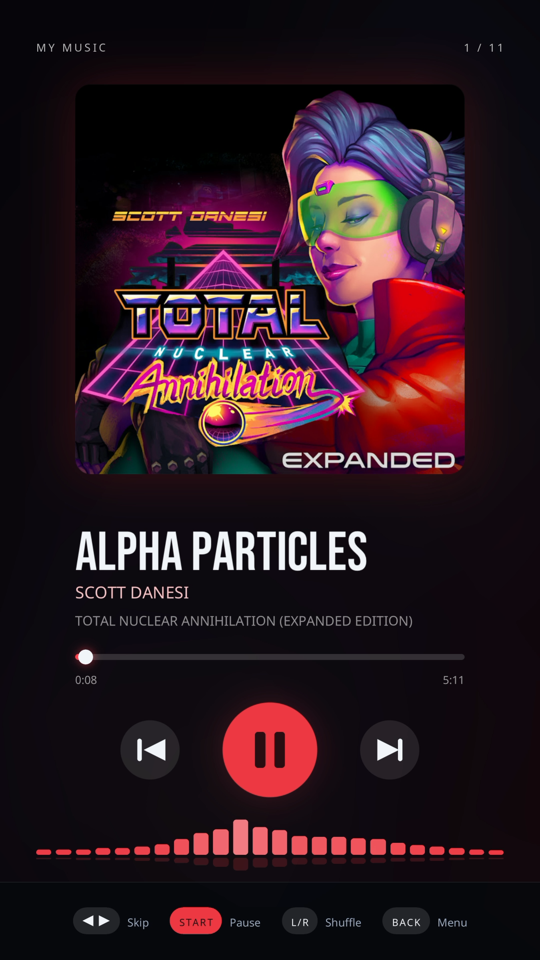
Album art over a blurred wash of itself, a progress bar, and a live spectrum analyzer. Radio gets a spinning record.
Search YouTube or pick a music channel – Lofi Girl's 24/7 radios, NewRetroWave, NoCopyrightSounds, NPR Music – and it plays on the backglass, the thumbnail as the cover. New in 2.4.
A videos folder on the USB drive plays on the backglass, folder by folder, with Now Playing on the playfield.
The album cover big on the backglass, a lit jukebox marquee on the DMD, placed right on both the 4KP and HDP.
MP3, AAC, FLAC, OGG, Opus, WAV and WMA, with album art from the folder or embedded in MP3, FLAC and M4A files. Videos in MP4, MKV, MOV, WebM and AVI.
Everything works with the cabinet's own buttons and flippers. An Arcade Control Panel isn't required.
Playback continues while you browse; the mini player on every list shows what's on.
Send songs, videos or whole album folders from a computer or phone on your network, without taking the USB drive out.
When a new version is out, a banner on the main menu installs it and restarts. Your favorites and music stay put.
Jukebox scans a folder named music at the root of the USB drive, and every folder inside it.
music (all lowercase) at the drive's root.Artist/Album/track layout works great.USB DRIVE (root)
âââ music/
âââ Daft Punk/
â âââ Discovery/
â âââ cover.jpg
â âââ 01 One More Time.mp3
â âââ 02 Aerodynamic.mp3
âââ Bonobo/
âââ Migration/
âââ 01 Migration.flac
Album art comes from a cover, folder or front image in the album's folder, or a picture embedded in MP3, FLAC and M4A files. Names come from the files' tags, or from the folders when there are none.
"Flipper" means either flipper button. The bottom of every screen shows the buttons that work there.
| Screen | Buttons |
|---|---|
| Menu | Arrows move · Start open · Back exit |
| Radio | Arrows select · Start open / play · Flipper favorite · Back up a level |
| Search | Arrows move · Start press key · then Start play, Flipper favorite on results |
| Favorites | Arrows select · Start play · Flipper remove · Back to menu |
| My Music | Arrows select · Start open / play / toggle Shuffle · Back up a level |
| Videos | Arrows select · Start open a folder / play · Back up a folder |
| YouTube | Arrows select · Start open a channel / play · Back up a level |
| Now Playing | ←/→ previous / next · Start pause · Flipper shuffle (your music) or favorite (radio) · Back back |
jukebox-app.zip from the latest release.jukebox-app inside the external folder on your cabinet's USB stick: external/jukebox-app/. From 2.2 on, Jukebox updates itself; for older versions, replace the old files. Your favorites carry over.music folder at the root of the USB drive (see above). Radio and Search need the cabinet online.The basics. The README has the full details.
AtGames Legends Pinball 4KP and HDP. Jukebox reads the cabinet model to put the menu, the backglass art and the DMD marquee on the right screens.
Radio, Search and YouTube do. My Music and Videos work offline.
No. Everything works with the cabinet's own buttons; a flipper saves favorites. Y and X still work if you have a panel.
Check that the folder is named exactly music (lowercase), sits at the root of the USB drive, and holds files of a supported type: MP3, M4A/AAC, FLAC, OGG, Opus, WAV or WMA. A large library shows "Scanning library…" briefly the first time. More in the Your music guide.
Put a cover.jpg (or folder / front, .jpg or .png) in the album's folder. Pictures embedded in MP3, FLAC and M4A files are read too, and when there's neither, Jukebox looks the album up online (the cabinet needs Wi-Fi). For an album the lookup can't find, a cover.jpg is the way.
Stations come and go, so it may simply be offline right now. Try another one.
Jukebox can write a log of what it's doing, which is usually enough to find the problem: a screen showing the wrong thing, a YouTube video or cover that won't load, the backglass not changing, and so on.
jukebox.cfg at the root of the USB stick (next to the external folder).diag = 1jukebox-panels.log from the root of the stick.Open an issue, describe what you did and what you saw, and attach the log. While diag is on, Jukebox also labels each screen with which panel it is; delete jukebox.cfg (or set diag = 0) when you're done.
Choose YouTube on the main menu: Search YouTube, or pick Lofi Girl (its 24/7 live radios), NewRetroWave, NoCopyrightSounds or NPR Music. The video plays on the backglass with Now Playing on the playfield, and the rest of the list follows. YouTube plays through yt-dlp, a free, public-domain tool that isn't part of Jukebox: the first time, Jukebox asks, downloads it from GitHub (about 3 MB) and keeps it updated weekly. It needs the internet. Jukebox isn't affiliated with YouTube or the channels it lists.
Make a folder named videos at the root of the USB drive, copy video files into it (sub-folders are fine), and choose Videos on the main menu, the strip under the tiles. The video plays on the backglass with Now Playing on the playfield, and the rest of the folder follows. H.264 up to 1080p at 30 fps plays best; 4K, 60 fps or HEVC files may stutter.
Yes. In My Music, choose Add music and videos over Wi-Fi. The cabinet shows an address and a PIN: open the address in a browser on a computer or phone on the same network, enter the PIN, and drop in songs, videos or whole album folders. Videos go to the videos folder. Press Back on the cabinet when you're done. See the Your music guide.
From version 2.2, Jukebox checks for a new version when it starts. When there is one, a banner appears under the main menu tiles: select it, choose Install, then Restart now. Only the app itself is replaced. On 2.1 or older, install 2.2 by hand once (see Get started).
Yes. Favorites are saved on the device and carry over when you replace the app with a new version.